Optimizing a gaming keyboard setup extends beyond simply plugging in the device; it involves a systematic approach to hardware placement, software configuration, and performance tuning. The goal is to minimize input lag, maximize ergonomic comfort, and tailor key functions to specific gaming demands, directly impacting player reaction times and overall competitive advantage. A poorly configured keyboard can introduce fatigue, hinder complex inputs, and ultimately detract from performance, regardless of the hardware's inherent quality. This guide outlines the critical steps for establishing a high-performance gaming keyboard environment.
Initial Hardware Connection and Driver Installation
The foundation of any gaming keyboard setup begins with a stable connection and the correct driver installation. Most gaming keyboards utilize a USB-A connection, often with a braided cable for durability. Connect the keyboard directly to a primary USB port on the motherboard, avoiding USB hubs or front-panel ports where possible, as these can introduce latency or power delivery issues. Once physically connected, the operating system typically installs generic drivers. However, for full functionality, including custom key bindings, macro programming, and RGB lighting control, the manufacturer's proprietary software and drivers are essential. Download these directly from the keyboard manufacturer's official website.
- Direct Connection: Use a motherboard USB port for optimal signal integrity.
- Manufacturer Drivers: Install proprietary software for access to advanced features.
- Firmware Updates: Check for and apply any available firmware updates through the manufacturer's utility; these often resolve bugs or improve performance.
Ergonomic Positioning for Peak Performance
Ergonomics are paramount for sustained gaming sessions and injury prevention. Incorrect posture or keyboard placement can lead to discomfort, repetitive strain injuries (RSI), and reduced reaction times. Position the keyboard centrally in front of your monitor, ensuring your wrists remain straight and neutral, not bent upwards or downwards. Many gaming keyboards include a detachable wrist rest; utilize it if it supports a neutral wrist position. Adjust chair height so your forearms are parallel to the floor, allowing your fingers to rest naturally on the home row keys.
Pro Tip: Evaluate your keyboard's tilt. Many keyboards have adjustable feet. Experiment with a flat or slightly angled position that keeps your wrists neutral. An excessive angle can force an unnatural wrist extension, increasing strain during extended use.
Best for: Preventing long-term injury and maintaining consistent input accuracy.
Software Configuration: Key Remapping and Macro Programming
Manufacturer-provided software is the control center for customizing your gaming keyboard. This is where you configure key assignments, create macros, and manage profiles. Key remapping allows you to change the function of any key, which is particularly useful for reassigning less accessible keys to frequently used actions. Macro programming enables you to record a sequence of keystrokes and mouse clicks, then assign that sequence to a single key press. This is invaluable for executing complex in-game commands with a single input.
Key Considerations:
- Game-Specific Profiles: Create and save distinct profiles for different games. These profiles can automatically activate when a specific game launches.
- Layered Functions: Utilize function (Fn) keys or dedicated macro keys to create multiple layers of commands, expanding the keyboard's functionality without adding physical keys.
- On-Board Memory: Check if your keyboard supports on-board memory. This allows you to save profiles directly to the keyboard, making your custom settings portable across different PCs without needing the software installed.
Optimizing Performance Settings: Polling Rate and Debounce
Beyond physical setup and basic remapping, fine-tuning performance settings within the keyboard software can further reduce input latency. The two primary settings to review are polling rate and debounce time.
Polling Rate: This refers to how often the keyboard reports its status to the computer, measured in Hertz (Hz). A 1000Hz polling rate means the keyboard reports 1000 times per second, or every 1 millisecond. Higher polling rates generally result in lower input lag. Most high-end gaming keyboards offer 1000Hz (1ms) as the default or maximum setting. Ensure this is set to its highest stable value.
Debounce Time: This is the brief delay a keyboard switch waits after a key press to register another input from the same key, preventing "chatter" or accidental double-inputs from a single press. While a necessary function, an excessively long debounce time can introduce perceived input lag. Gaming keyboards often allow adjustment of this setting. Experiment with the lowest stable debounce setting that does not produce chatter. This is typically a very small value, often measured in microseconds or a few milliseconds.
Best for: Competitive gaming where every millisecond of input response matters.
Customization and Aesthetics: RGB and Cable Management
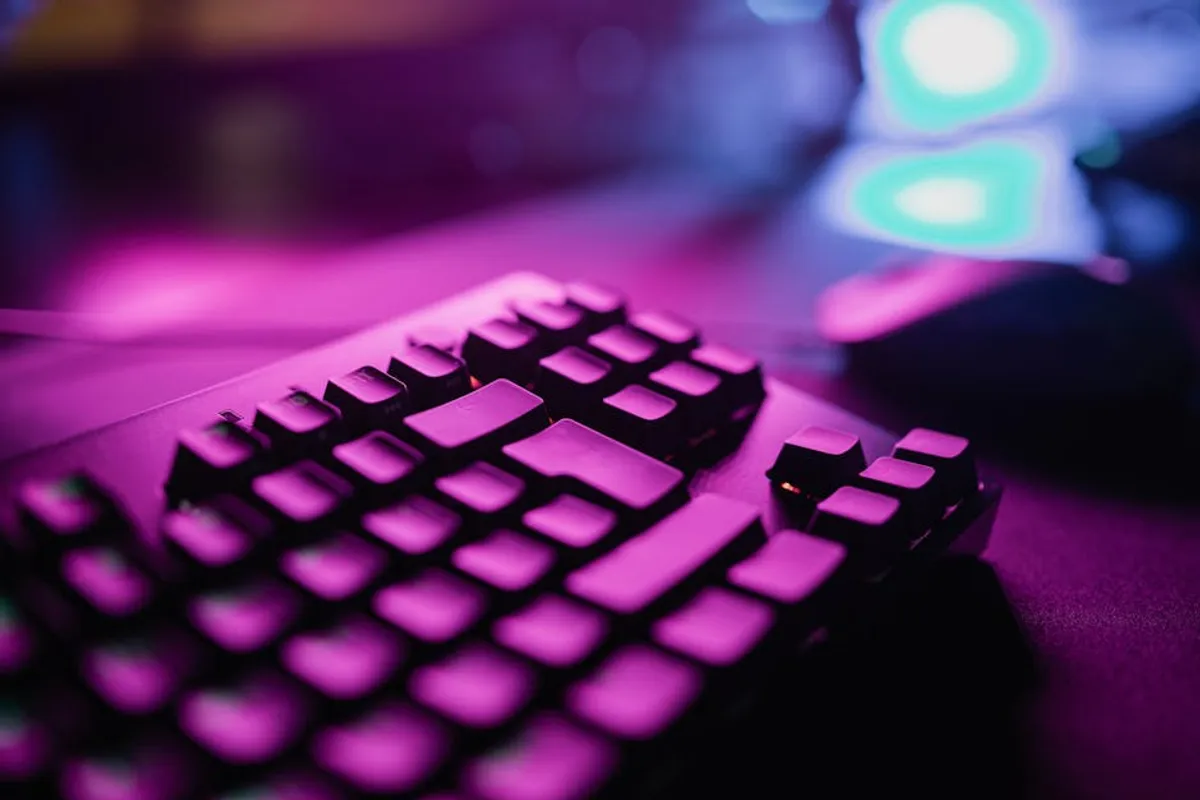
While not directly impacting performance, RGB lighting and effective cable management contribute to a cohesive and distraction-free gaming environment. RGB lighting can be configured through the same manufacturer software to match your setup's aesthetic, provide visual cues for in-game actions, or simply enhance immersion. Consider static colors for competitive play to minimize visual distraction, or dynamic effects for casual use.
Cable Management: Route the keyboard cable neatly, perhaps using integrated cable channels on the keyboard's underside or cable ties. A tidy setup prevents accidental snags, reduces desktop clutter, and contributes to a professional appearance. Ensure the cable has enough slack to avoid tension, which could damage the port or cable over time.
Fine-Tuning Your Setup for Specific Games
An optimal keyboard setup is rarely a one-size-fits-all solution. Different game genres benefit from distinct configurations. For instance, a Real-Time Strategy (RTS) game might demand extensive macro use for build orders and unit control, while a First-Person Shooter (FPS) prioritizes rapid, precise individual key presses and minimal debounce. Regularly review and adjust your profiles based on the specific titles you play. Utilize in-game training modes or practice ranges to test new key bindings and macro sequences before competitive matches.
Best for: Maximizing efficiency and comfort across diverse gaming experiences.
Sustaining Your Gaming Keyboard's Performance
Maintaining your keyboard ensures its longevity and consistent performance. Regular cleaning prevents dust and debris from affecting switch actuation. Use compressed air to clear particles from between keycaps and a microfiber cloth for surface grime. Periodically check for updated drivers and firmware, as manufacturers often release improvements or bug fixes. If your keyboard features hot-swappable switches, consider experimenting with different switch types to find a feel that further enhances your gaming experience, or replace individual switches that begin to degrade.
Frequently Asked Questions
What is the ideal polling rate for a gaming keyboard?
For most competitive gaming scenarios, a 1000Hz (1ms) polling rate is considered ideal, as it offers the lowest possible input latency between the keyboard and your computer.
Should I use a wrist rest with my gaming keyboard?
A wrist rest is recommended if it helps maintain a neutral wrist position, preventing extension or flexion that can lead to discomfort or injury. Ensure it supports your palm and wrist without putting pressure on the carpal tunnel area.
How often should I update my keyboard's firmware and drivers?
It is advisable to check for firmware and driver updates quarterly or whenever you experience performance issues. Manufacturers frequently release updates that improve stability, add features, or resolve compatibility problems.
Can macros be detected as cheating in online games?
The use of macros can be a gray area. Simple macros for single key reassignments are generally acceptable. However, complex macros that automate multiple actions, especially those that mimic bot-like behavior or provide an unfair advantage, may be flagged by anti-cheat systems and could lead to account penalties. Always check a game's specific terms of service regarding macro usage.